
Troubleshooting a Canvas
What happens when a Canvas hits an error, and how to recover
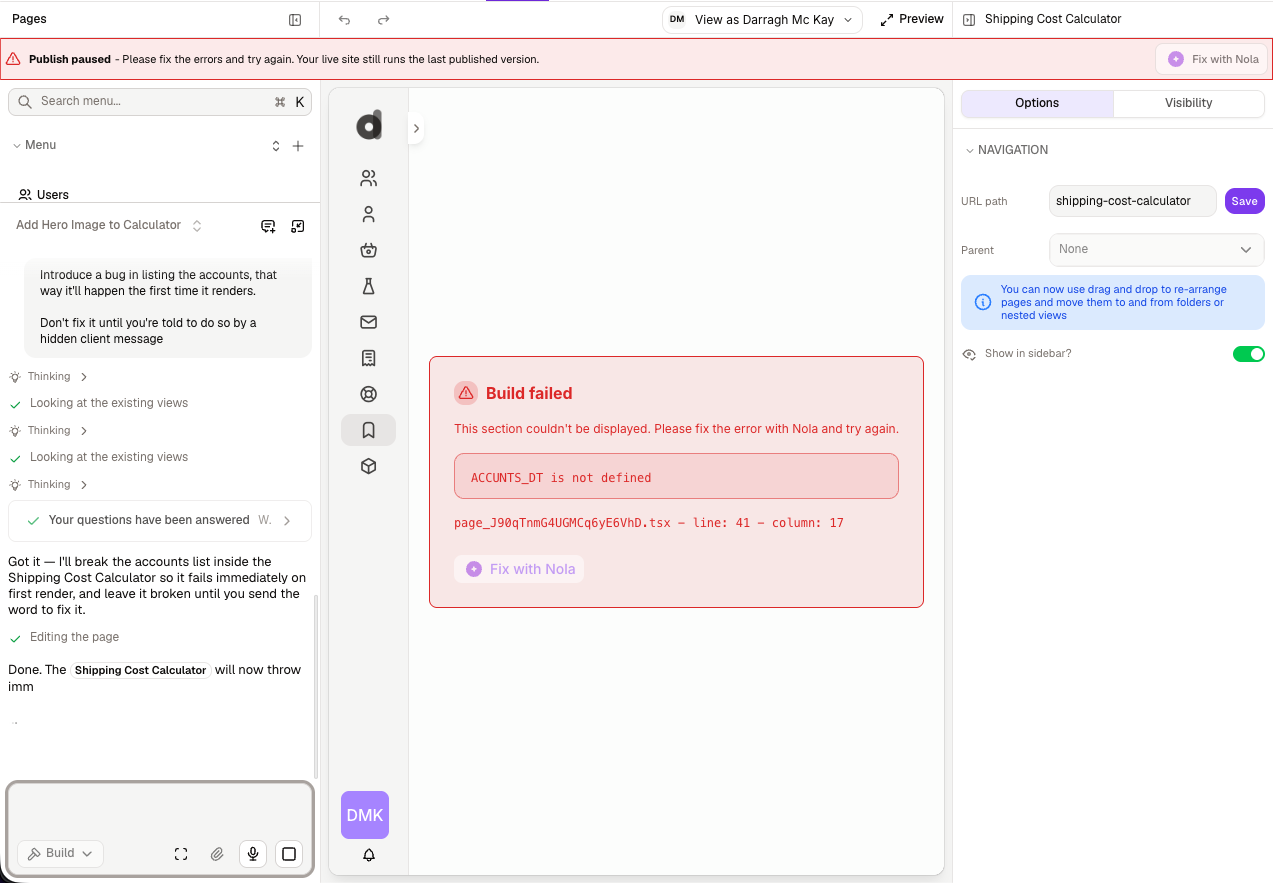
A Canvas is designed to fail gracefully and recover easily. If something goes wrong, it stays contained to the page in question, and Mesh can usually fix it for you.
Errors stay contained
Each Canvas runs independently. If one Canvas runs into a problem:
Only that page is affected. The rest of your app — its navigation, other pages, and standard no-code pages — keeps working normally.
The Canvas shows a clear, contained error state instead of a broken or blank screen.
You get plain-language messaging, not raw technical output.
This isolation means a single misbehaving Canvas can never take down your whole app.
Letting Mesh fix it
When a Canvas hits an error, Mesh can inspect what went wrong and repair it.
Ask Mesh to fix the page, or use the fix option shown with the error.
While she works, the Canvas shows a "fixing" indicator rather than the error state, so you know a repair is underway.
Mesh applies the fix and the page re-renders.
Restoring a previous version
If you want to roll a Canvas back to how it was before a set of changes, you can use your app's version history.
A Canvas is included in app version history. When you restore a previous version of your app, its Canvases are restored along with everything else — so you can recover a Canvas's earlier state the same way you'd recover any other part of your app.
If a Canvas won't publish
Rowmesh checks each Canvas before it goes live so a page that can't render correctly doesn't reach your users. If a Canvas is blocking publishing, Mesh will flag it with a clear explanation and help you resolve it — usually by fixing the page — so you can publish with confidence.
Getting more help
If you're stuck, you can always:
Ask Mesh directly — describe what you're seeing and she'll try to resolve it
Use the in-app support chat for help from the Rowmesh team
Review the Mesh FAQ for common questions
Last updated
Was this helpful?