
Configuring a Canvas
Set a Canvas's route, spaces, and visibility rules just like any other page
A Canvas is a real page in your app, so it's configured the same way as every other page. You use the right-hand sidebar to set where it lives in your app, who it's for, and when it appears — while you continue to edit the page's content by chatting with Mesh.
This keeps the experience consistent: Mesh handles the page body, the sidebar handles the page settings.
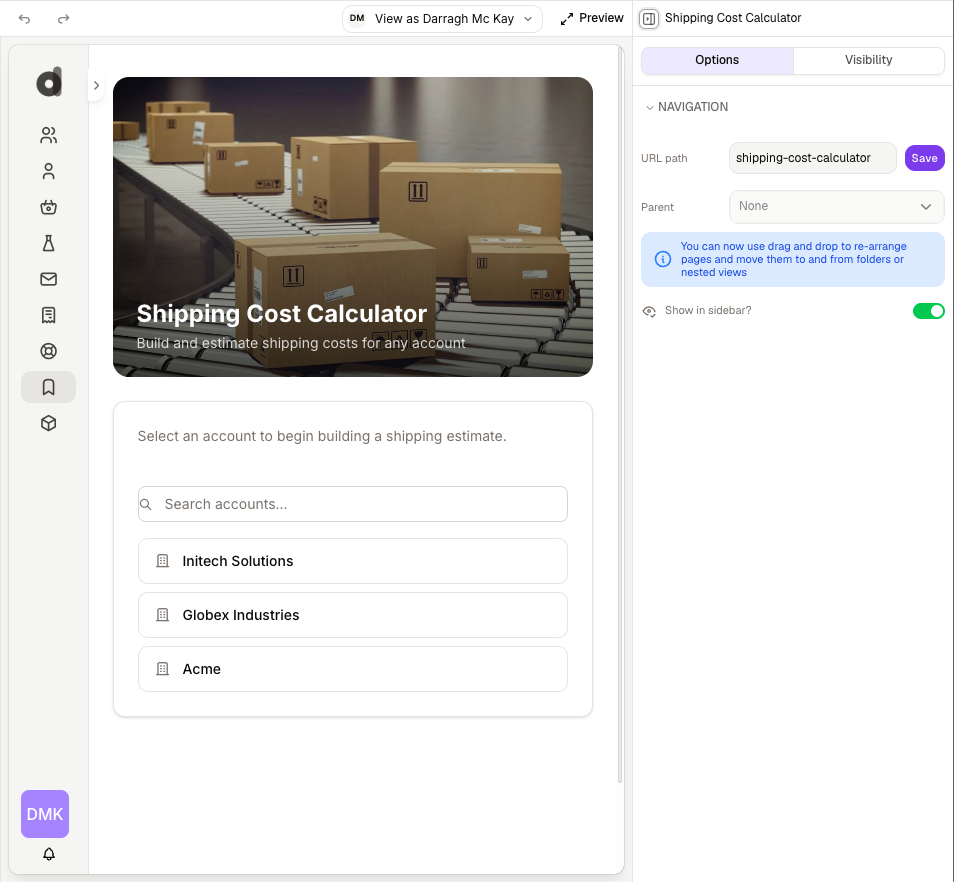
Route
The route is the page's address within your app. Set a clear, readable route so the Canvas has a sensible URL and is easy to link to.
See renaming pages for how routes and page names work together.
Assigned spaces
If your app uses spaces, you can assign a Canvas to one or more spaces to control which part of your app it belongs to. The page appears in the navigation for the spaces you assign it to, exactly like a standard page.
Visibility rules
Use visibility rules to decide who can see the Canvas and when. You can:
Show the page only to specific user roles
Show or hide it based on the logged-in user or their data
Combine conditions to fine-tune access
Because a Canvas uses the same visibility system as the rest of your app, the permissions you already understand apply here without any special handling.
Publishing
A Canvas publishes with the rest of your app. When you publish, the current version of each Canvas goes live alongside your other changes, so what your users see always matches what you last published.
Next steps
Troubleshooting a CanvasLast updated
Was this helpful?