
Editing a Canvas
Point at any part of a Canvas and tell Mesh what to change — no full-page rewrite required
Once a Canvas exists, you refine it by chatting with Mesh. You can ask for broad changes ("add a section for open tickets") or pinpoint a single element and change just that. This targeted approach is called hybrid editing.
Editing by chatting
The simplest way to change a Canvas is to describe the change in the Mesh chat:
"Make the header background darker."
"Add a column to the table for the deal owner."
"Move the chart above the stats."
Mesh applies the change and updates the preview. Because she edits the Canvas in place, small tweaks stay fast — she doesn't rebuild the whole page for every request.
Editing a specific element (hybrid editing)
When you want to change one particular thing on a Canvas, you can point Mesh straight at it instead of describing where it is in words.
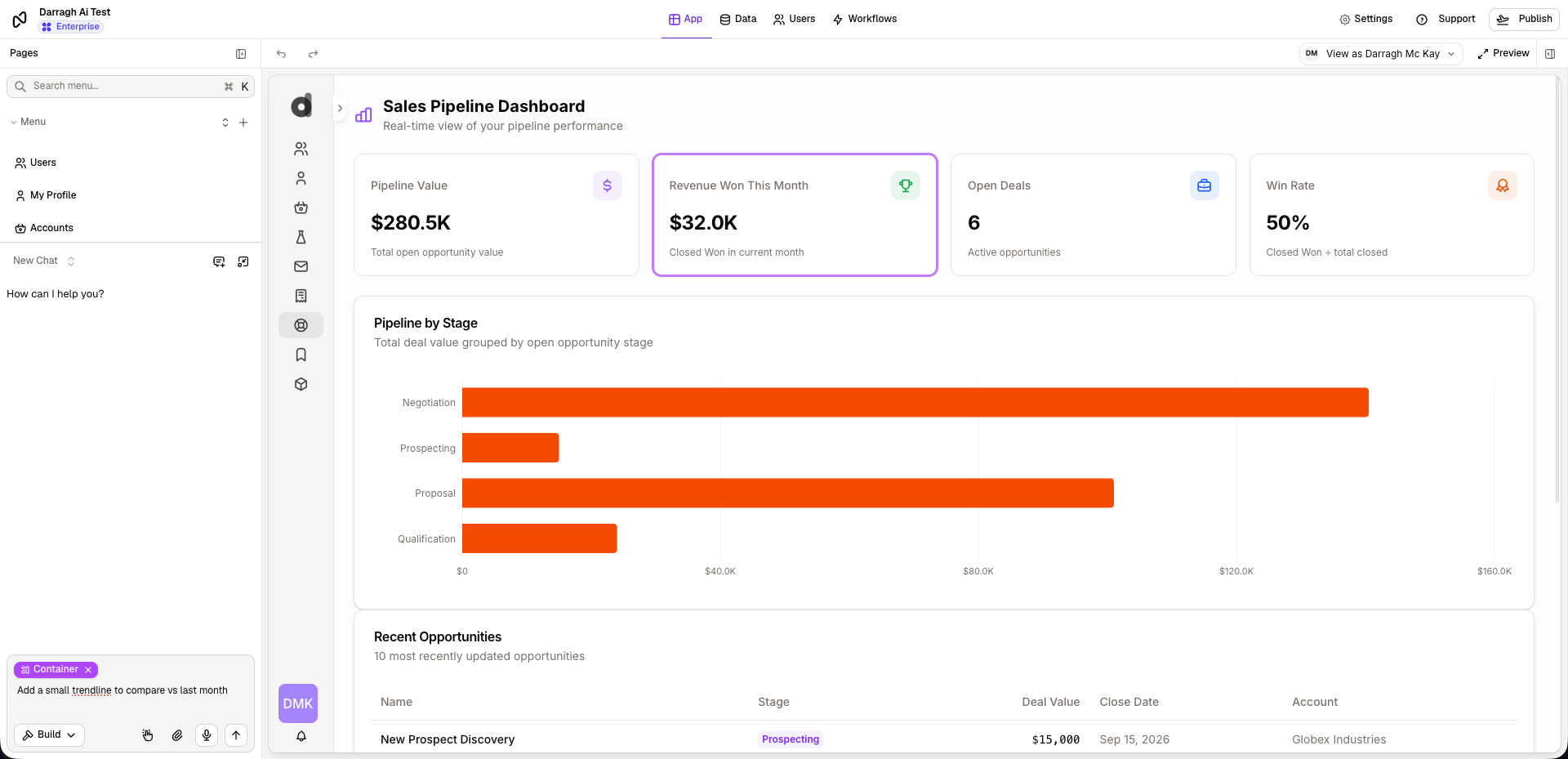
Hover over the page. Editable elements highlight as you move over them, so you can see what you're able to target.
Click the element you want to change — a card, a heading, a chart, an image, a section.
The selected element is added to the chat as context, and it's clearly marked so you know exactly what Mesh will act on.
Type your change — for example, "make this bigger" or "change this to show last month instead."
Mesh applies the change to just that element.
When you're done, clear the selection to go back to talking about the whole Canvas.
Why targeted edits matter
Hybrid editing keeps changes surgical:
Faster — Mesh changes only what you selected rather than regenerating the page.
Safer — the rest of your Canvas stays exactly as it was.
Clearer — you and Mesh are always talking about the same element.
Adding and replacing images
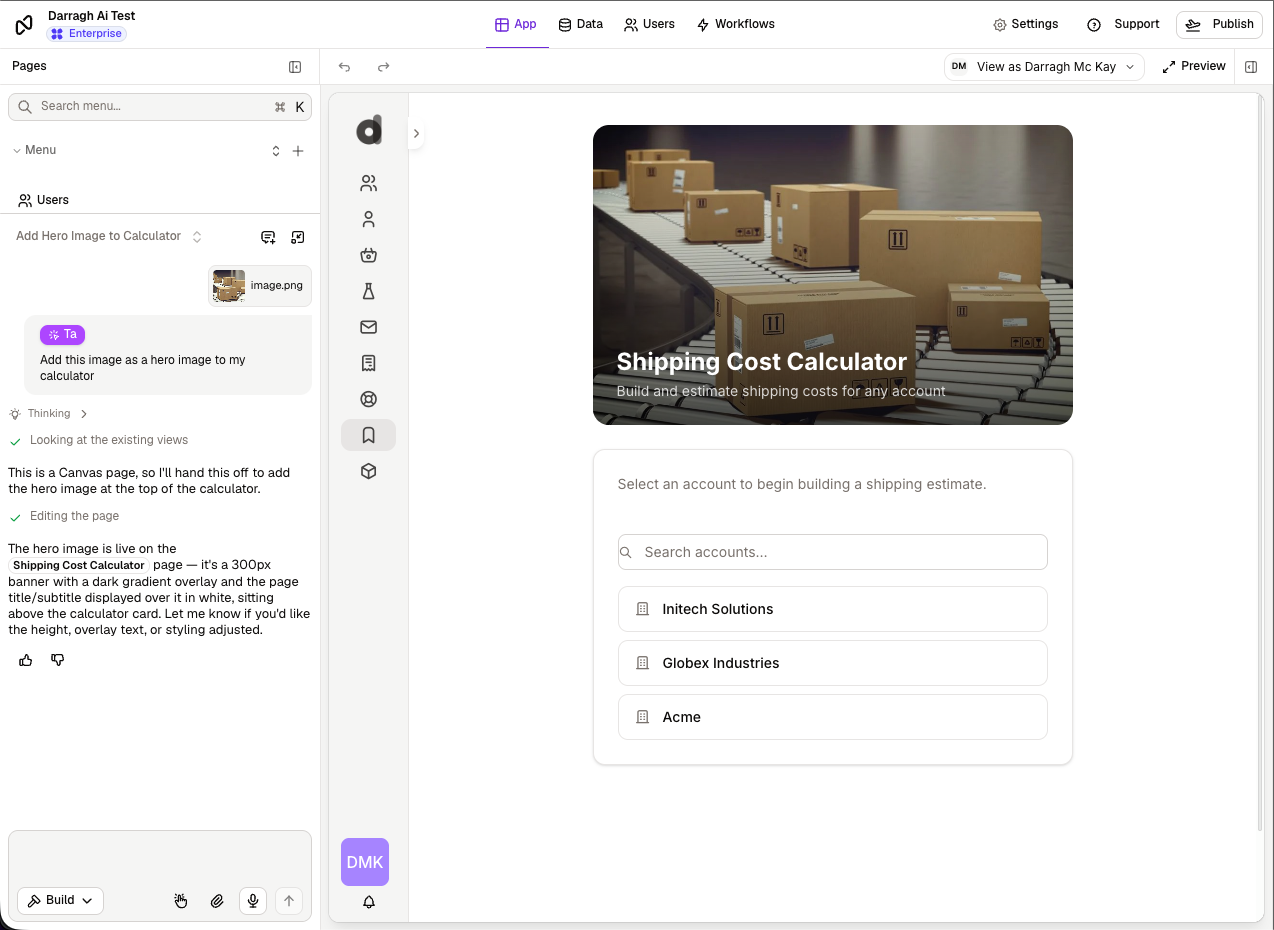
You can bring your own images into a Canvas — logos, banners, illustrations, product photos.
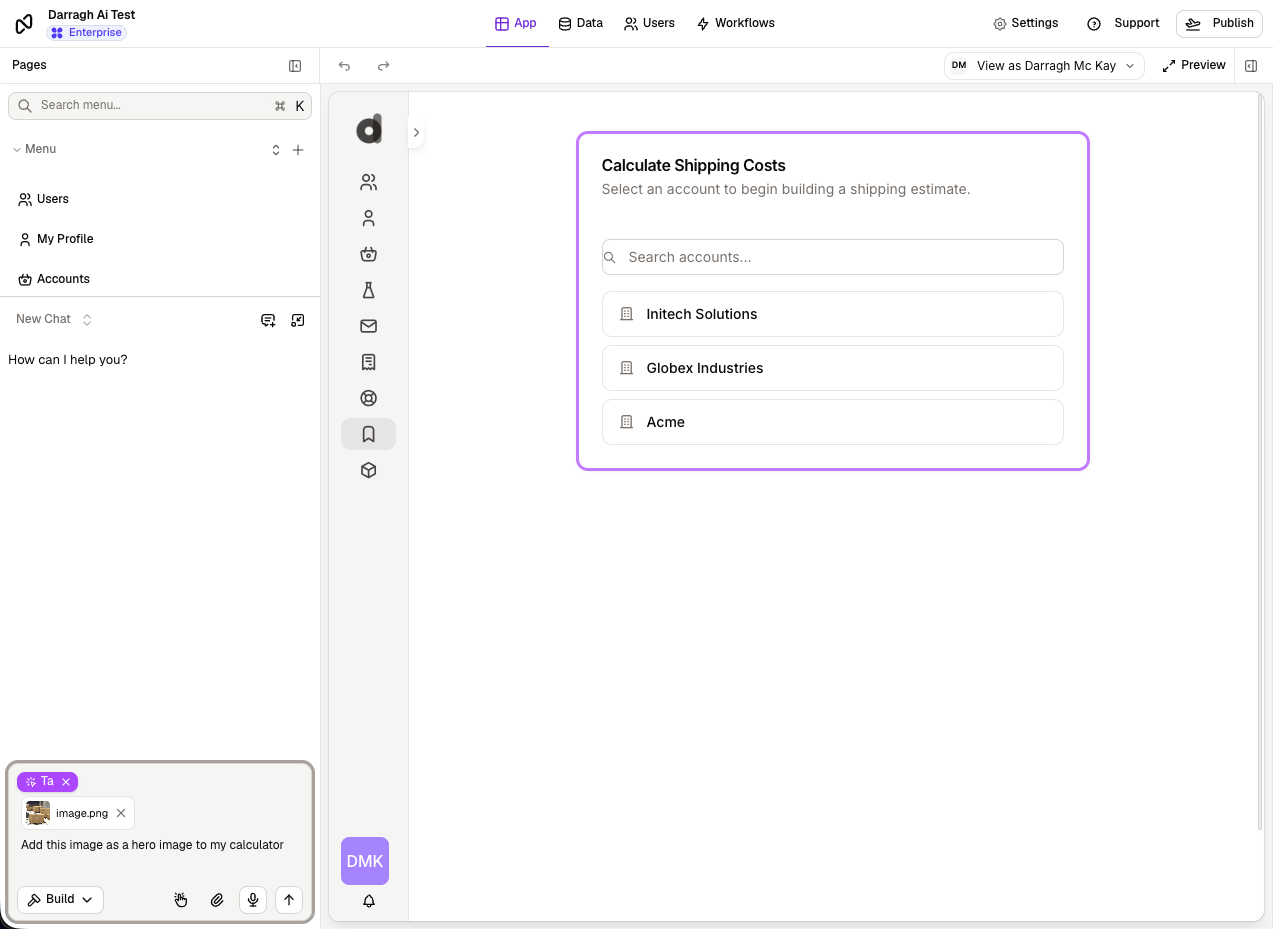
Upload the image in the Mesh chat.
To control where it goes, select the element or area where you want it first, then upload — or describe the placement, e.g. "put this logo in the header."
Mesh places the image in the Canvas.
To swap an image out, select it and upload the replacement, or ask Mesh to "replace this image."
Iterating with confidence
Every edit is part of your normal build history, so you can experiment freely:
Keep refining conversationally until the Canvas is right.
If a change isn't what you wanted, tell Mesh what to adjust — you don't have to start over.
If something goes wrong, you can restore an earlier version of the Canvas.
Next steps
Configuring a CanvasTroubleshooting a CanvasLast updated
Was this helpful?