
Google Sheets
Learn how to plug your Google Sheets into your Rowmesh app
Overview
With Rowmesh you can connect multiple data sources to power your app. Which means you can create an app which is connected to many Airtable bases, Google sheets & Rowmesh tables at the same time. In doing so, we enable business' to unite many data sources into one single source of truth - their Rowmesh app.
In this guide we are going to walkthrough how easy it is to connect your Google sheet(s) to your Rowmesh app. Once connected, this will allow your team, customers &/or third party stakeholders to read, update and create records in your Google sheets directly from your Rowmesh app.
Before connecting your Google Sheet to Rowmesh, you should check that it is formatted suitably. We'll take you through this below.
Supported worksheet format
First, we must ensure that your Google Sheet(s) are formatted correctly for Rowmesh. Specifically, Rowmesh requires that:
Column headings are in Row 1
The first column is in Column A
The first data row starts in Row 2
Your sheet is not a pivot table
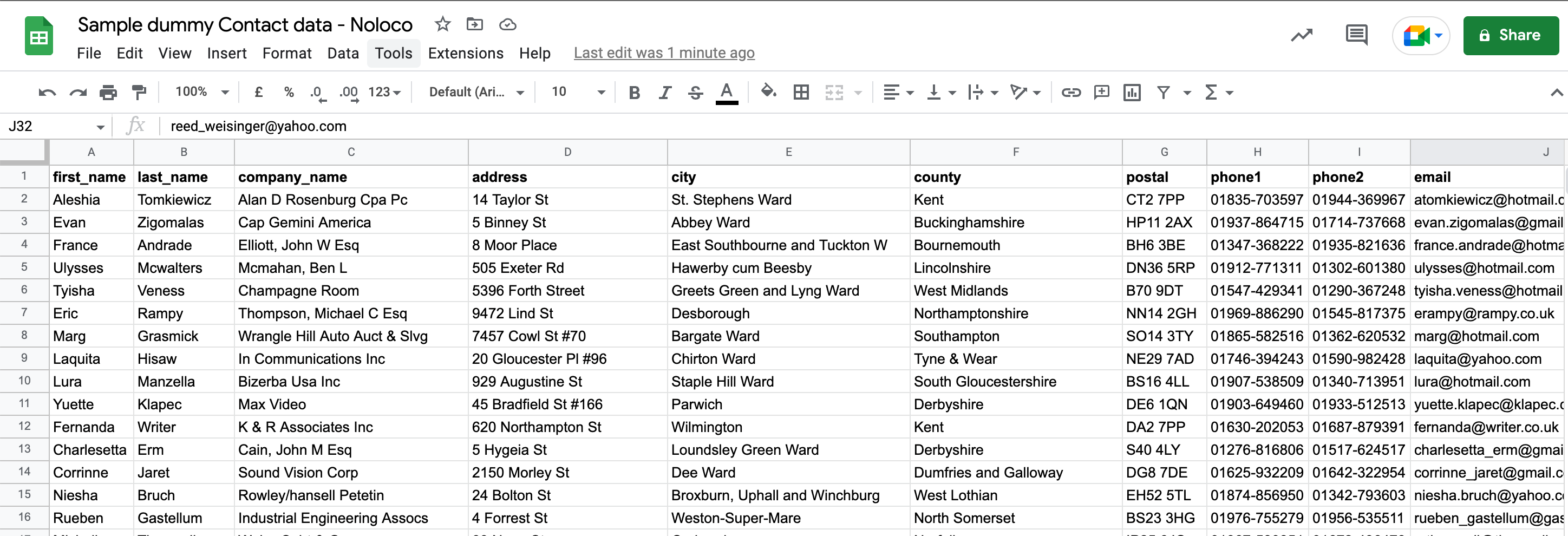
Before proceeding, please verify each sheet(s):
Has a column header titles for each column in Row 1
Has at least x1 row of data starting in Row 2
Does not have any hidden columns without a column header title
Is not a pivot table
If your sheet does not follow the above format or includes any of the listed 'gotcha's', it will not work.
Before proceeding to the next step, you will need to remove and/or modify your sheet(s) until they resemble the format displayed in the screenshot above.
Using ImportRange formulae
We support sheets that populate their data using =IMPORTRANGE formulae, however we do have some recommendations to ensure a smooth integration into your Rowmesh app:
Just use the formula to import data and hard code the column header title.
Ideally import one column per formula rather than one formula pulling in multiple columns (use multiple formulae if you want to import a range across a number of columns).
Connect your Google sheet
1) Add your Google sheet connection
Navigate to the data tab in your Rowmesh app and click to add a new data source. From the list, choose Google sheets.
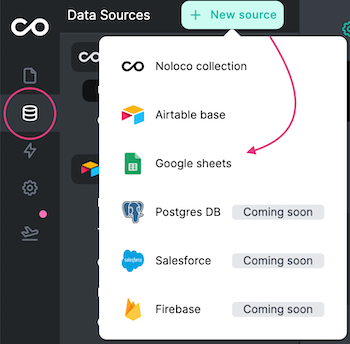
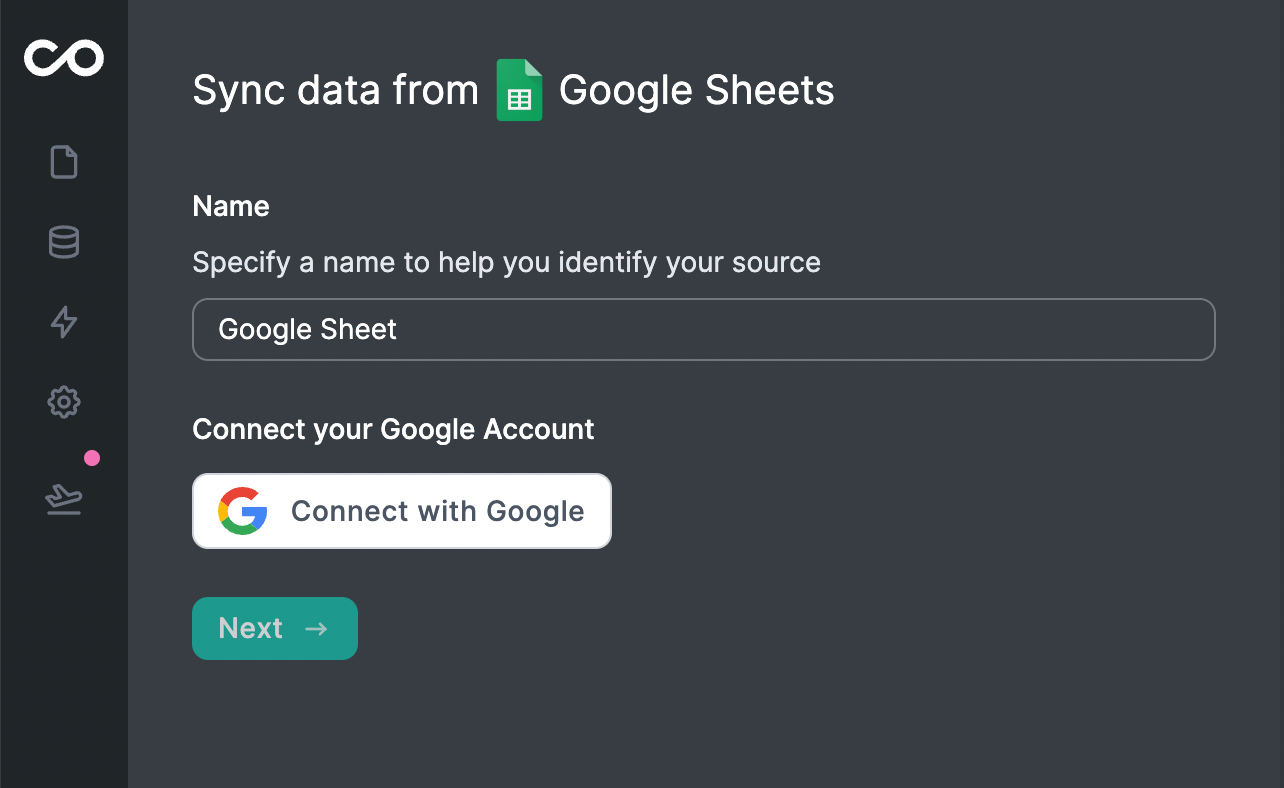
2. Name your Data source & Sign-in with Google
It's best practice to call the data source the same name as your google sheet to help you keep track.
Once you have specified a name, proceed to Connect your Google Account. Simply select 'Connect with Google' and you will be brought to the 'Sign in with Google' dialogue.
You can also go to this link: https://portals.rowmesh.com/~/_/setup/google-sheets, choose the app you want, or it will automatically open the last active app after 5 seconds.
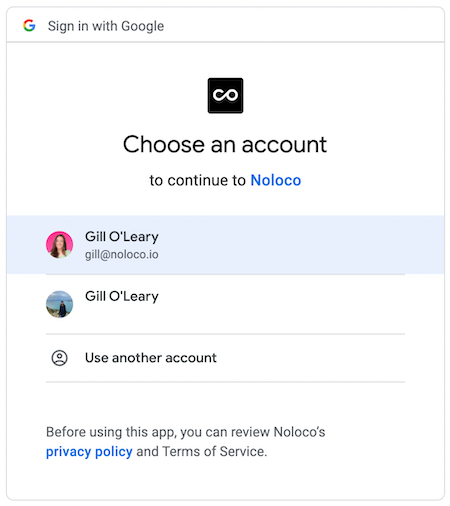
3. Connect to the Google account where your google sheet is stored.
4. Allow Rowmesh access to your Google Account
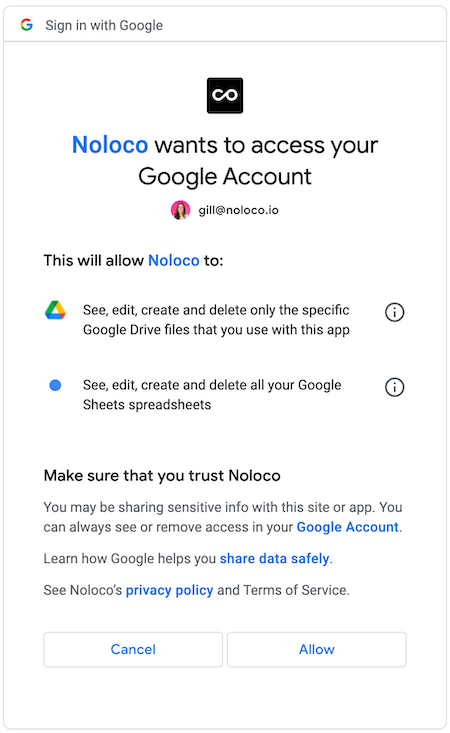
5. Now specify which Google Sheet you want Rowmesh to sync
Now, you must open the Google sheet you want Rowmesh to connect to. Once it is opened, copy the sheet URL link found in the browser bar (Ctrl + C or Cmd + C).
Then paste the sheet URL into the location specified in the below screenshot.
Select 'Next' to kick off the sync
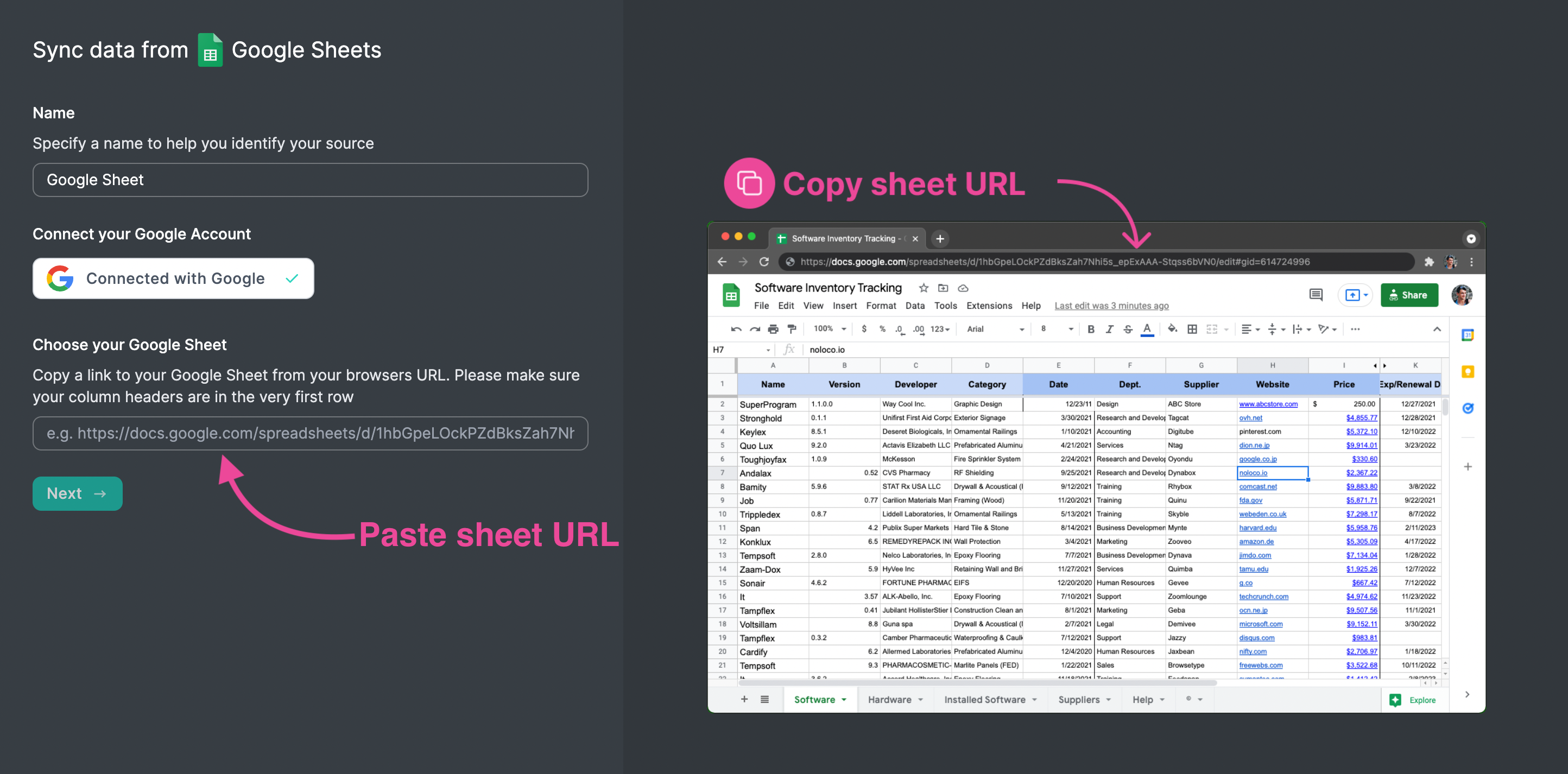
Once the sync is complete select the 'Bring me to my app' button and Voilá you may now access your google sheet data from within your Rowmesh app.. magic 🪄 🎉
How to disconnect your Google Account
You can disconnect your Google Account from Rowmesh if you wish to prevent Rowmesh from accessing your Google Drive & Google Sheets, but also as a trouble-shooting step to reconnect your account properly.
Go to
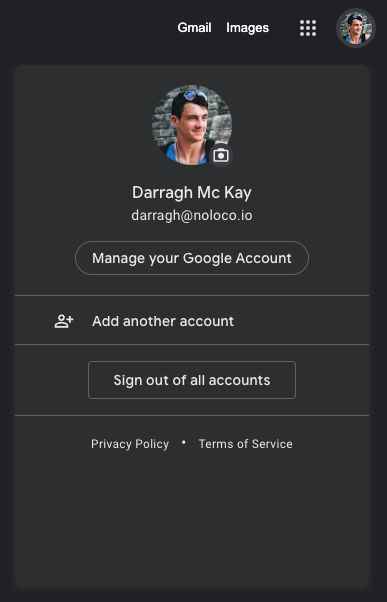
Click your Avatar in the top right-hand corner
Click 'Manage your Google Account'
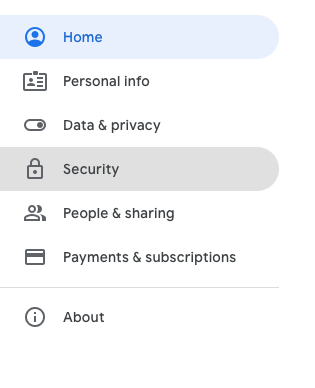
In the left side bar choose 'Security'
Scroll down until you find 'Third-party apps with account access' and click 'Manage third-party access'
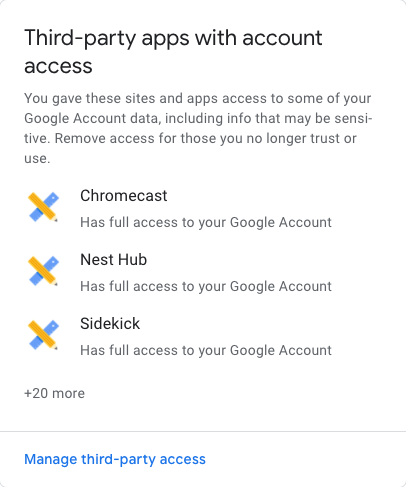
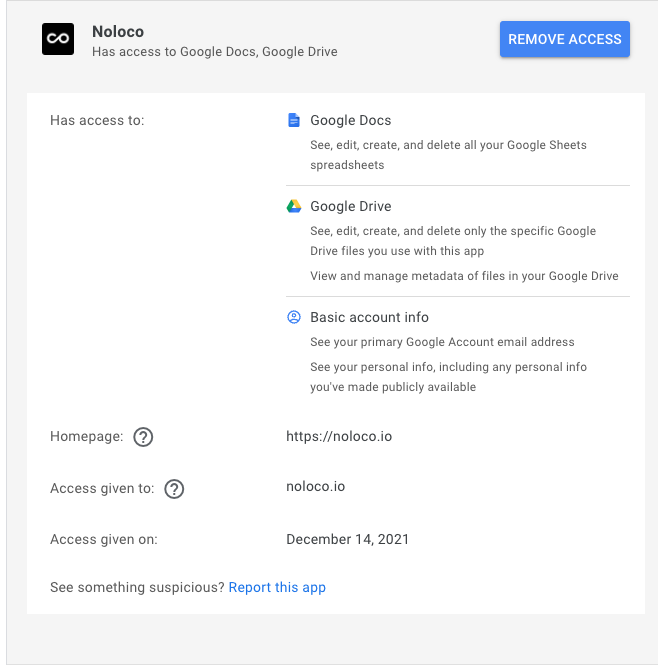
Find 'Rowmesh' on the list that appears and click it to expand it, then click 'Revoke Access' and accept any dialogues that appear
Reconnecting to Rowmesh
To reconnect your account to Rowmesh, go back to the "Integrations" section in your App settings and follow the instructions to reconnect.
Supported Field Types
When you connect your Google Sheets to Rowmesh, the platform intelligently assesses the structure of your spreadsheet to ensure a seamless integration. It automatically maps the format of your Google Sheets columns to the corresponding field types in Rowmesh. For example, any columns in your spreadsheet that contain date information will be translated into "Date" fields within Rowmesh, preserving the chronological data. Similarly, if your Google Sheets contain columns with dropdown menus, Rowmesh will convert these into "Single Option" fields. This automatic conversion process ensures that all data is consistently formatted and functional in Rowmesh, enabling you to maintain the integrity and usability of your data as you transition between platforms.
FAQs
Last updated
Was this helpful?